Webship Workspace

Build any CMS in a container, then test it with Webship-js.

Webship Workspace is a container-based development workspace with a web dashboard, made for developing and testing websites with Webship-js. It builds, starts, stops, backs up and restores real projects (Drupal, Drupal CMS, WordPress, Joomla, Magento, TYPO3 and more) through plain cmd-*.sh scripts with live terminal output, sets up Webship-js in each of them with the step pack of its platform, and carries an AI assistant that knows the page you are on.

The core is only the base to start working. Platforms, workspace folders, hosting providers, git forges and container runtimes are plugins you add one at a time, from the terminal or the dashboard.

npm install -g @webship.co/workspace
webship-workspace init ~/workspace

Get started Documentation GitHub

The Webship Workspace dashboard: a card for each of the 26 workspace folders, with the AI assistant on the left


The Dev workspace: the create card with its builder, and the project cards below

Build a site from a card

Pick a builder (Drupal, Drupal CMS, WordPress, Joomla, Magento and the other platforms you added), give the project a name and press Build. The output streams into the page, and the site answers at https://<name>.ddev.site when it ends.


The DDEV menu of a project: stop, restart, describe, logs, custom commands, database and clone

Every project action is a menu away

Start, stop, back up, restore, clone as a copy or as a git worktree, add a domain, open the Web IDE, run the tests. Long jobs run in screen sessions that outlive the browser tab.


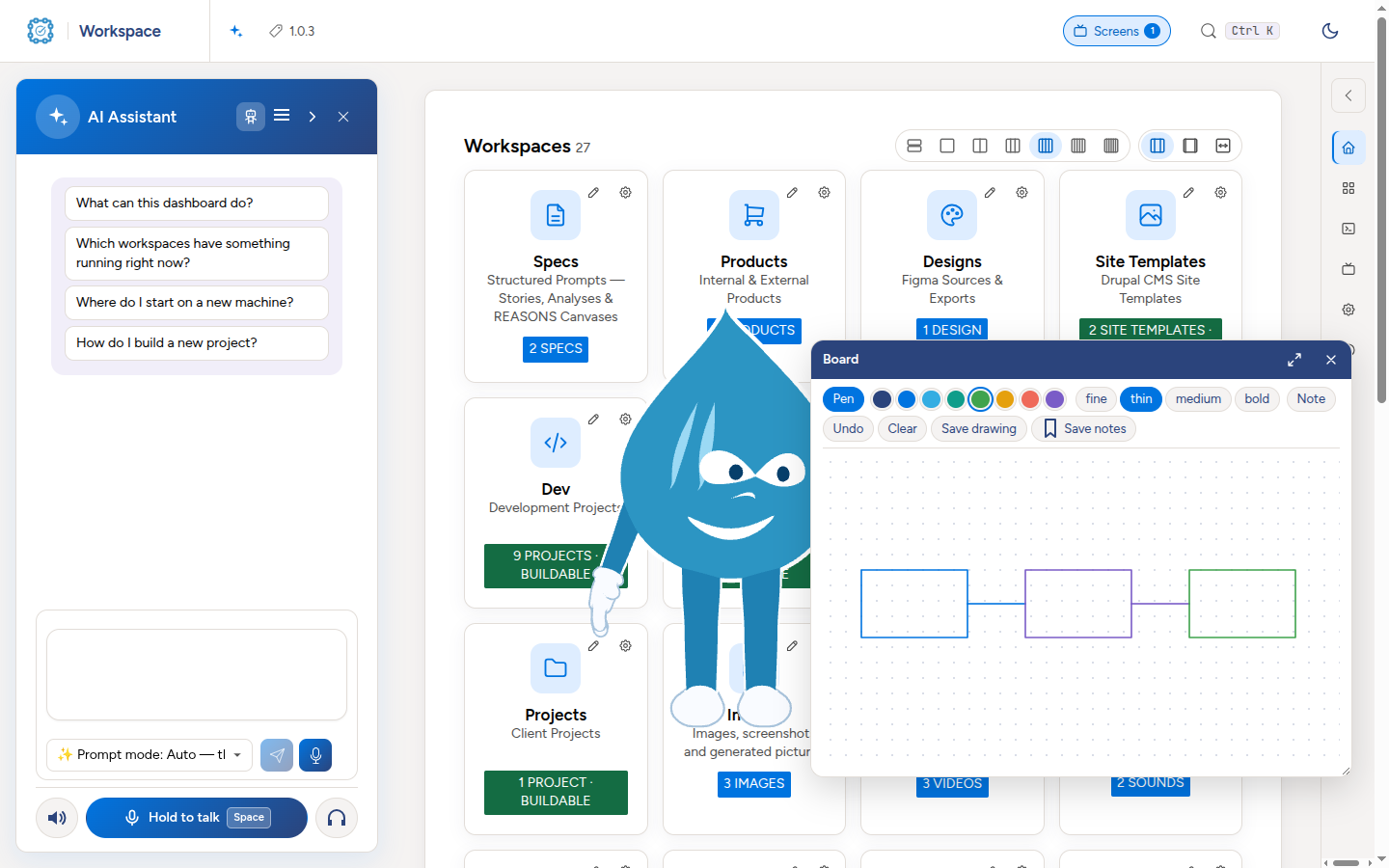
The AI assistant with its avatar and a drawing board over the dashboard

An assistant that knows where you are

The AI assistant sits beside every page with the context of that page: the workspace, the project, what is running. Ask it to build, to explain a failure or to take you to the right screen.


The Images workspace: upload, screenshot a page, generate with AI, and the gallery

More than sites

Docs, specs, worklogs, images, videos, audio, designs, AI agents, skills, commands and prompts each have their own workspace folder, with the tools that kind of work needs.


Made for testing with Webship-js

Every platform plugin brings the Webship-js step pack of its platform, so a scenario reads as a sentence instead of a selector. One command, or the Tests menu of a project, sets Webship-js up in the project with that pack, the default accounts and a first feature, and runs it:

bash cmd-tools-testing.sh my-site                 # set up Webship-js and the platform's step pack
bash cmd-tools-testing.sh my-site --run           # run the suite
bash cmd-tools-testing.sh my-site --run --tags "@smoke"
  • Reports where you work: the result sits on the project row, and the report of a run opens in the dashboard with its failure screenshots and recordings.
  • A tester for each platform: each platform plugin ships an AI agent that writes and runs scenarios with its step pack, and tests in a real browser first.
  • Step packs: Drupal, Drupal CMS, WordPress, Odoo, Joomla, Magento, TYPO3, django CMS, Gatsby, Astro, Webflow, HubSpot CMS, Squarespace, Ghost, Backdrop CMS, PrestaShop, Craft CMS and Diffy, each its own npm package.

Webship-js External steps Testing in the workspace


Add only what you need

Every optional part is an npm package, @webship.co/workspace-<name>, turned on in four steps: require, activate, install, configure. The same four are buttons on Settings → Plugins.

  • Workspace folders: dev, test, sandboxes, demos, projects, products, site templates, modules, themes, recipes, profiles, libraries, docs, specs, worklogs, images, videos, audio, designs, avatars, AI agents, skills, commands and prompts, graphs, RAG.
  • Hosting providers: Upsun, Acquia Cloud, DigitalOcean, cPanel, AWS, Azure, GoDaddy.
  • Git forges: GitHub, GitLab, Bitbucket.
  • Container runtimes: Docker Compose, Lando, Docksal, Podman and Kubernetes, beside DDEV.
  • Features: the Git menu, the Web IDE, Jira work items, Google Drive.

All plugins Write a plugin


Read more